

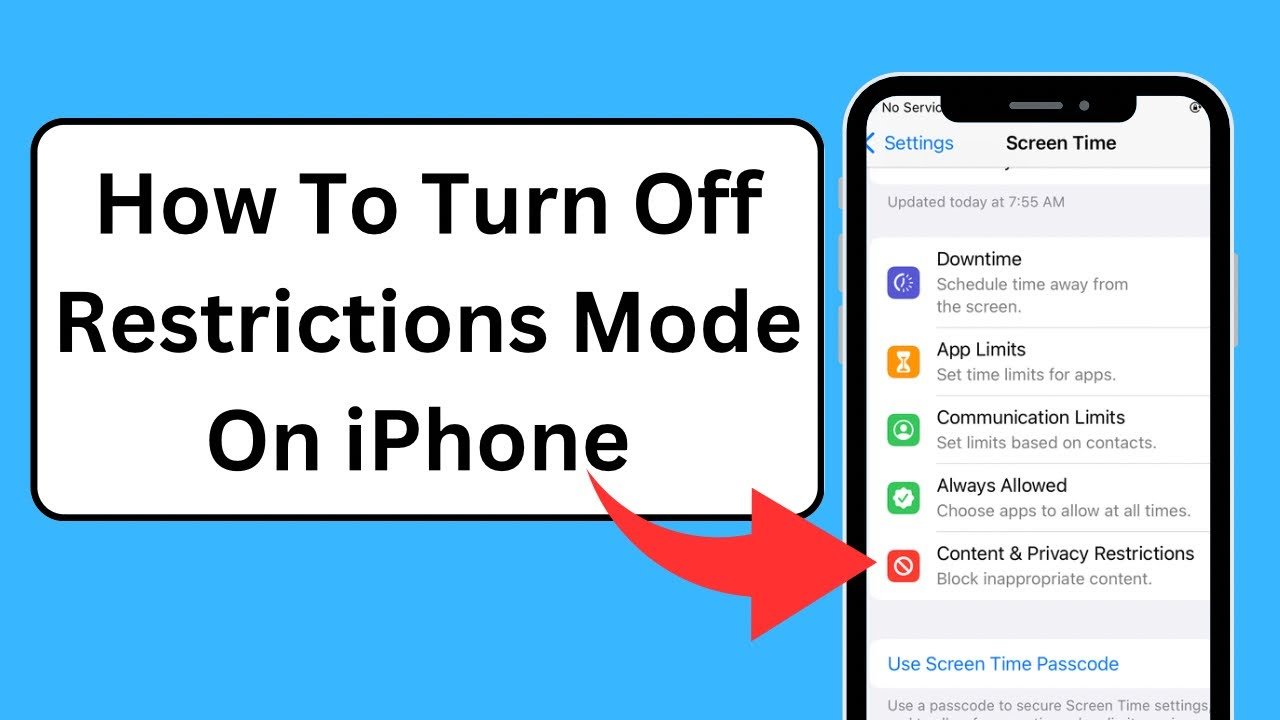
We have all been there. You pick up your iPhone to download a new game, visit a website, or change a simple setting, and suddenly—you are locked out. Options are greyed out, buttons don’t work, or you are staring at a “Content & Privacy” error message. It is incredibly frustrating to feel like a guest on your own device.
Whether you bought a second-hand phone, forgot a passcode you set years ago, or are just tired of constant blocks, you need a solution that works now.
In this expert-led guide, we are going to walk you through exactly how to turn off the restrictions on iPhone, bypassing the technical jargon to give you clear, actionable steps. We will cover everything from Screen Time locks and forgotten passcodes to handling those annoying “Restricted” phone calls. Let’s unlock your device’s full potential.
What Are iPhone Restrictions, Anyway?
Before we start tapping buttons, it is helpful to understand what is actually blocking you. In the Apple ecosystem, “restrictions” aren’t just one single button. They are a collection of safety nets designed to keep the phone “safe.”
Usually, when people talk about restrictions, they mean Screen Time (formerly Parental Controls). These settings control:
- Which apps you can open.
- What websites you can visit.
- Whether you can make in-app purchases.
- Privacy settings like location tracking.
However, restrictions can also come from your mobile carrier (blocking calls), your workplace (MDM profiles), or even specific app settings (like YouTube). We are going to tackle all of them.
How to turn off the restrictions on iPhone
This is the most common query users search for, and for good reason. If your camera is missing, or you can’t delete apps, this is the fix you need. These blocks are almost always hiding inside the Screen Time menu.
The Standard Method (If You Know Your Passcode)
If you remember the 4-digit PIN you set up (or if you never set one), this is a 30-second fix.
- Open Settings: Tap the grey gear icon on your home screen.
- Find Screen Time: Scroll down past “Focus” and tap the purple hourglass icon labeled Screen Time.
- Navigate to Restrictions: Scroll to the bottom and tap on Content & Privacy Restrictions.
- The Master Switch: You will see a toggle at the very top. Simply tap it to turn it from Green (On) to Grey (Off).
- Enter Passcode: If prompted, punch in your 4-digit code.
Congratulations! You have just learned how to switch off restrictions on the iPhone in the easiest way possible. All your apps and settings should now be fully accessible.
What If I Forgot My Screen Time Passcode?
This is the panic moment. You try to turn off the restrictions, but the iPhone asks for a code you set in 2021 and haven’t used since. Don’t worry—you do not need to erase your phone to fix this.
Using Apple ID Recovery
Since the iOS 12 update, Apple allows you to reset this code using your Apple ID.
- Go to Settings > Screen Time.
- Tap Change Screen Time Passcode.
- Tap it again to confirm.
- The Secret Step: When the keypad appears asking for the old code, look closely. Tap the blue text that reads “Forgot Passcode?”
- Enter your Apple ID and Password.
- Your iPhone will verify your identity and let you create a brand-new 4-digit PIN. Use this new PIN to disable the restrictions.
Expert Note: If you do not see the “Forgot Passcode?” option, your device might be managed by a family organizer. In that case, the parent device needs to make the changes.
Controlling the Web: How to Restrict (and Unrestrict) Websites
Sometimes, the phone works fine, but Safari acts like a strict librarian. You try to visit a site and get a “Restricted” warning. This happens because the web filter is active. Interestingly, learning how to restrict websites on iPhone is the best way to understand how to unblock them.
How to Fix Website Blocking
- Go back to Settings > Screen Time > Content & Privacy Restrictions.
- Tap on Content Restrictions.
- Tap on Web Content.
Here, you will see three levels of security:
- Unrestricted: (Select this to remove all blocks).
- Limit Adult Websites: (The default filter that sometimes blocks innocent sites by mistake).
- Allowed Websites Only: (The strictest level—essentially a “whitelist” mode).
If you want to stop the blocks, ensure Unrestricted is checked. Conversely, if you are a parent wondering how to stop restrictions on iPhone from being disabled by your clever teen, you can set this to “Limit Adult Websites” and lock it with a passcode they don’t know.
Understanding “Restricted” Calls and Numbers
Let’s shift gears from the screen to the phone functionality itself. A common confusion arises between “device restrictions” and “call restrictions.” Have you ever had your phone ring, but the caller ID just says “Restricted”?
What is a restricted phone call?
A restricted call occurs when the person calling you has intentionally blocked their caller ID information. They might have dialed *67 before your number, or they have a permanent privacy setting enabled. To you, the receiver, it looks like a ghost is calling. While this is sometimes used by legitimate doctors or businesses to protect privacy, it is frequently used by telemarketers and scammers.
How to stop restricted calls
If you are tired of answering the phone only to hear a robot or heavy breathing, you can silence these calls globally.
- Open Settings.
- Scroll down to Phone.
- Tap Silence Unknown Callers.
- Toggle the switch On.
What this does: Any number that is not in your Contacts list (including “Restricted” and “No Caller ID”) will be sent immediately to voicemail without ringing your phone. It brings instant peace and quiet.
How to block restricted numbers
Users often ask how to block restricted numbers permanently. The tricky part is that you cannot “block” a specific restricted number because your phone doesn’t know who it is!
However, aside from the “Silence Unknown Callers” trick, you have two options:
- Carrier Apps: Apps like AT&T ActiveArmor, T-Mobile Scam Shield, or Verizon Call Filter can often block these calls at the network level before they even reach your phone.
- Do Not Disturb: Set your “Do Not Disturb” focus mode to only allow calls from “Contacts Only.”
App-Specific Locks: YouTube and Social Media
Sometimes the iPhone settings are fine, but a specific app is acting like a nanny. The biggest culprit is YouTube.
how to disable restricted mode on YouTube
If you are trying to watch a video and see “This video is unavailable in Restricted Mode,” that is a setting inside the YouTube app, not your iPhone settings.
- Open the YouTube App.
- Tap your Profile Picture (top right corner).
- Tap Settings (gear icon).
- Tap General.
- Find Restricted Mode and toggle it Off (grey).
Note: If this toggle is grey and locked, your account might be managed by a Google Family Link or a network administrator (like school Wi-Fi).
Why Does My Screen Keep Turning Off?
We often see users confuse “restrictions” with display settings. A very frequent search is: why does my iPhone keep locking itself?
You are reading a recipe or an article, and 30 seconds later—black screen. This isn’t a security restriction; it’s an Auto-Lock timer designed to save battery.
How to fix it:
- Go to Settings > Display & Brightness.
- Tap Auto-Lock.
- Change the timing from “30 Seconds” to 2 Minutes or Never.
Pro Tip: Do not leave it on “Never” permanently, or you risk draining your battery if you forget to lock the phone manually.
Comparison: Types of Restrictions You Might Face
To help you diagnose exactly which “restriction” is plaguing you, we have broken them down into categories.
| Restriction Type | What It Blocks | Where to Fix It |
| Screen Time | Apps, Safari, Purchases | Settings > Screen Time |
| MDM / Profile | Corporate Data, WiFi | Settings > VPN & Device Management |
| Carrier Blocks | Incoming “Restricted” Calls | Carrier App / Settings > Phone |
| App Limits | Time spent on TikTok/Games | Settings > Screen Time > App Limits |
Troubleshooting Common Restriction Errors
### Solutions for Stubborn Restrictions
| Error Message / Issue | Why It Is Happening | The Fix |
| “Toggle Greyed Out” | You have a profile installed. | Check VPN & Device Management and delete unknown profiles. |
| “Incorrect Passcode” | You are using your screen unlock code, not the Screen Time code. | Reset via “Forgot Passcode?” using Apple ID. |
| “Limit Reached” | An App Limit timer is active. | Go to App Limits and delete the timer for that app. |
| “Restricted Site” | Web Content Filter is set to “Allowed Only”. | Switch Web Content to “Unrestricted”. |
Advanced: Removing Corporate (MDM) Restrictions
If you see a message saying “This iPhone is managed by your organization” or “Supervised,” standard Screen Time methods won’t work. This is a Mobile Device Management (MDM) profile.
If this is a work phone, do not remove this without permission—it could wipe your company email or alert the IT department.
However, if you bought a used phone and see this:
- Go to Settings > General.
- Scroll down to VPN & Device Management.
- Look for a “Configuration Profile.”
- Tap it and select Remove Profile.
- Enter your device passcode to confirm.
Conclusion: Taking Back Your Device
Your iPhone is a powerful tool designed for productivity and entertainment, but it can feel useless when barriers are in the way. Whether you were stuck figuring out how to turn off the restrictions on iPhone because of a forgotten code, or you were battling how to block restricted numbers from harassing you during dinner, you now have the knowledge to solve it.
Remember, restrictions aren’t always the enemy—they are excellent for digital well-being and child safety. But when they get in your way, you need to know how to hit the eject button.
Take a moment right now to check your Auto-Lock and Screen Time settings. A few simple taps can make your phone feel brand new again.
Frequently Asked Questions (FAQ)
Q: Will turning off restrictions delete my photos or apps?
A: No. Turning off restrictions simply unhides apps and unlocks features. No data is deleted in the process.
Q: Can I turn off restrictions without a computer?
A: Yes! All the steps listed above are done directly on your iPhone. You only need a computer if you are completely locked out of the phone and need to do a factory reset via iTunes.
Q: Why is “Clear History and Website Data” greyed out in Safari?
A: This is a classic sign of Web Content restrictions. Go to Screen Time > Content & Privacy Restrictions > Content Restrictions > Web Content and set it to “Unrestricted.” The option in Safari will immediately light up again.