

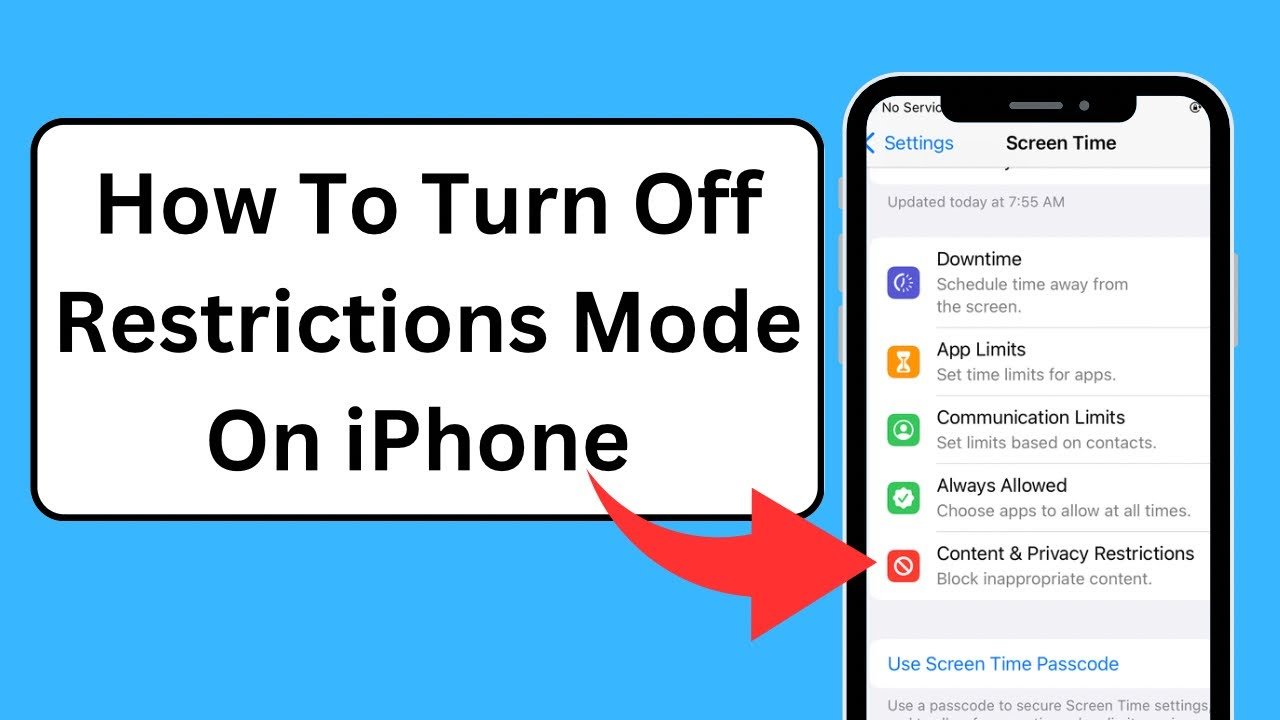
How to Turn Off the Restrictions on iPhone & Regain Full Control
We have all been there. You pick up your iPhone to download a new game, visit a website, or change a simple setting, and suddenly—you are locked out. Options are greyed out, buttons don’t work, or you are staring at a “Content & Privacy” error message. It is incredibly frustrating to feel like a guest on your own device. Whether you bought a second-hand phone, forgot a passcode you set years ago, or are just tired of constant blocks, you need a solution that works now. In this expert-led guide, we are going to walk you through exactly how to turn off the restrictions on iPhone, bypassing the technical jargon to give you clear, actionable steps. We will cover everything from Screen Time locks and forgotten passcodes to handling those annoying “Restricted” phone calls. Let’s unlock your device’s full potential. What Are iPhone Restrictions, Anyway? Before we start tapping buttons, it is helpful to understand what is actually blocking you. In the Apple ecosystem, “restrictions” aren’t just one single button. They are a collection of safety nets designed to keep the phone “safe.” Usually, when people talk about restrictions, they mean Screen Time (formerly Parental Controls). These settings control: However, restrictions can also come from your mobile carrier (blocking calls), your workplace (MDM profiles), or even specific app settings (like YouTube). We are going to tackle all of them. How to turn off the restrictions on iPhone This is the most common query users search for, and for good reason. If your camera is missing, or you can’t delete apps, this is the fix you need. These blocks are almost always hiding inside the Screen Time menu. The Standard Method (If You Know Your Passcode) If you remember the 4-digit PIN you set up (or if you never set one), this is a 30-second fix. Congratulations! You have just learned how to switch off restrictions on the iPhone in the easiest way possible. All your apps and settings should now be fully accessible. What If I Forgot My Screen Time Passcode? This is the panic moment. You try to turn off the restrictions, but the iPhone asks for a code you set in 2021 and haven’t used since. Don’t worry—you do not need to erase your phone to fix this. Using Apple ID Recovery Since the iOS 12 update, Apple allows you to reset this code using your Apple ID. Expert Note: If you do not see the “Forgot Passcode?” option, your device might be managed by a family organizer. In that case, the parent device needs to make the changes. Controlling the Web: How to Restrict (and Unrestrict) Websites Sometimes, the phone works fine, but Safari acts like a strict librarian. You try to visit a site and get a “Restricted” warning. This happens because the web filter is active. Interestingly, learning how to restrict websites on iPhone is the best way to understand how to unblock them. How to Fix Website Blocking Here, you will see three levels of security: If you want to stop the blocks, ensure Unrestricted is checked. Conversely, if you are a parent wondering how to stop restrictions on iPhone from being disabled by your clever teen, you can set this to “Limit Adult Websites” and lock it with a passcode they don’t know. Understanding “Restricted” Calls and Numbers Let’s shift gears from the screen to the phone functionality itself. A common confusion arises between “device restrictions” and “call restrictions.” Have you ever had your phone ring, but the caller ID just says “Restricted”? What is a restricted phone call? A restricted call occurs when the person calling you has intentionally blocked their caller ID information. They might have dialed *67 before your number, or they have a permanent privacy setting enabled. To you, the receiver, it looks like a ghost is calling. While this is sometimes used by legitimate doctors or businesses to protect privacy, it is frequently used by telemarketers and scammers. How to stop restricted calls If you are tired of answering the phone only to hear a robot or heavy breathing, you can silence these calls globally. What this does: Any number that is not in your Contacts list (including “Restricted” and “No Caller ID”) will be sent immediately to voicemail without ringing your phone. It brings instant peace and quiet. How to block restricted numbers Users often ask how to block restricted numbers permanently. The tricky part is that you cannot “block” a specific restricted number because your phone doesn’t know who it is! However, aside from the “Silence Unknown Callers” trick, you have two options: App-Specific Locks: YouTube and Social Media Sometimes the iPhone settings are fine, but a specific app is acting like a nanny. The biggest culprit is YouTube. how to disable restricted mode on YouTube If you are trying to watch a video and see “This video is unavailable in Restricted Mode,” that is a setting inside the YouTube app, not your iPhone settings. Note: If this toggle is grey and locked, your account might be managed by a Google Family Link or a network administrator (like school Wi-Fi). Why Does My Screen Keep Turning Off? We often see users confuse “restrictions” with display settings. A very frequent search is: why does my iPhone keep locking itself? You are reading a recipe or an article, and 30 seconds later—black screen. This isn’t a security restriction; it’s an Auto-Lock timer designed to save battery. How to fix it: Pro Tip: Do not leave it on “Never” permanently, or you risk draining your battery if you forget to lock the phone manually. Comparison: Types of Restrictions You Might Face To help you diagnose exactly which “restriction” is plaguing you, we have broken them down into categories. Restriction Type What It Blocks Where to Fix It Screen Time Apps, Safari, Purchases Settings > Screen Time MDM / Profile Corporate Data, WiFi Settings > VPN & Device Management Carrier Blocks Incoming “Restricted” Calls Carrier App / Settings >